
Setup Transmission BitTorrent on Docker with SSL
Introduction
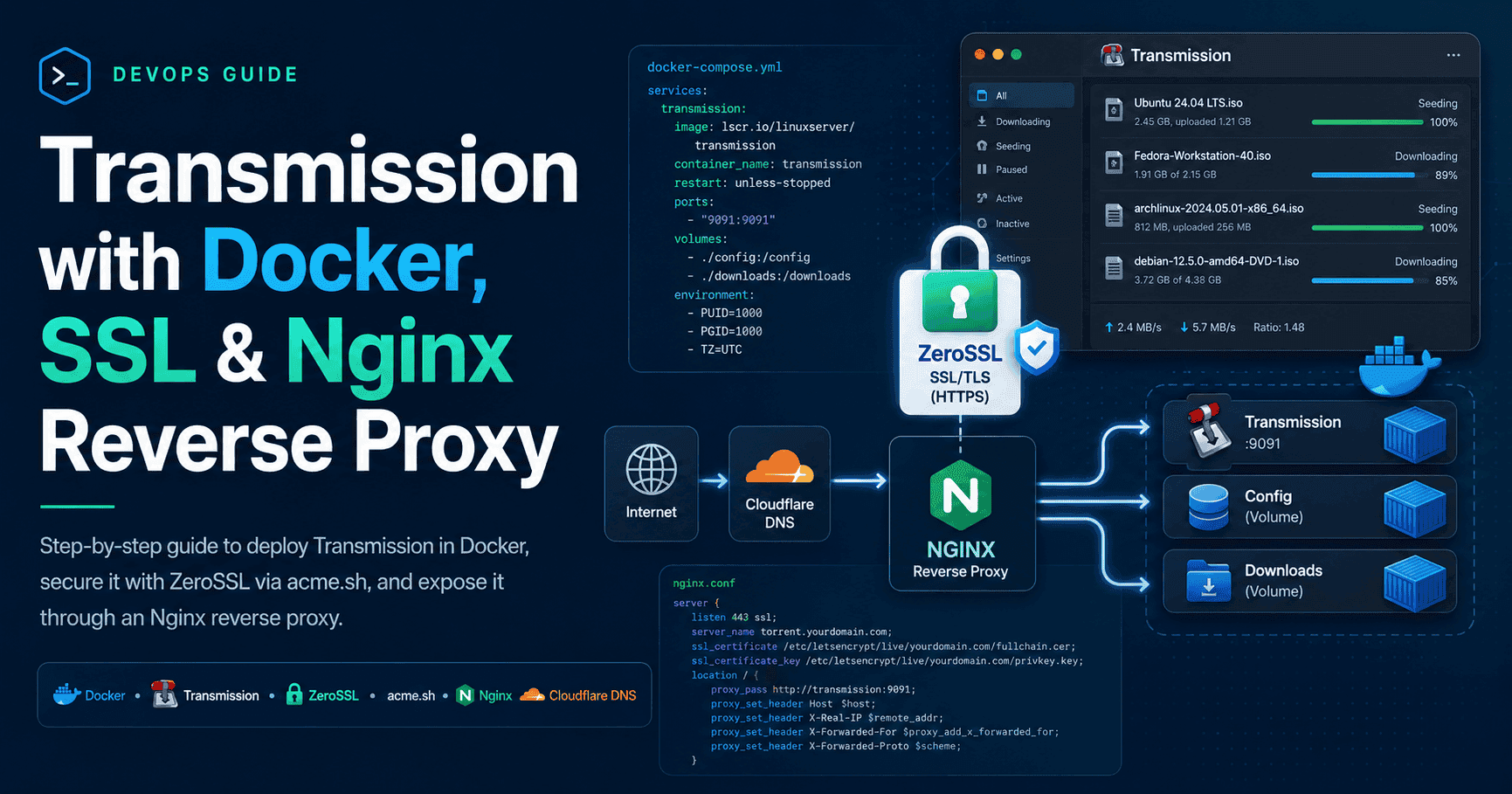
In this guide, we will walk through the process of setting up Transmission, a popular BitTorrent client, using Docker. We will also secure it with an SSL certificate from ZeroSSL and configure Nginx as a reverse proxy to access the Transmission web interface securely.
Prerequisites
- Docker installed
- Domain name pointing to the server's IP address
- Cloudflare account API token with permissions to manage DNS records
Step-by-step
-
SSH into the server
-
Create a
transmissiondirectory -
Create a
compose.ymlfile with the following content:yaml--- networks: ip6net: enable_ipv6: true ipam: config: - subnet: 2001:db8::/64 services: transmission: image: lscr.io/linuxserver/transmission:latest container_name: transmission environment: - PUID=1000 - PGID=1000 - TZ=Etc/UTC #- TRANSMISSION_WEB_HOME= #optional - USER=YOUR_USERNAME - PASS=YOUR_PASSWORD - WHITELIST= #optional - PEERPORT= #optional - HOST_WHITELIST= #optional volumes: - ./config:/config - ./downloads:/downloads #optional - ./watch:/watch #optional networks: - ip6net ports: - 51413:51413 - 51413:51413/udp restart: unless-stopped nginx: image: nginx:alpine container_name: nginx labels: - sh.acme.autoload.domain=example.com # For auto SSL certificate deployment depends_on: - transmission ports: - "8443:9091" networks: - ip6net volumes: - ./certs:/certs - ./nginx/templates:/etc/nginx/templates restart: unless-stopped acme.sh: image: neilpang/acme.sh restart: always container_name: acme.sh command: daemon volumes: - ./acmeout:/acme.sh - /var/run/docker.sock:/var/run/docker.sock -
Register ZeroSSL account:
bashdocker compose run --rm acme.sh --register-account -m my@example.com -
Aquire an SSL certificate using acme.sh:
bashdocker compose run --rm \ -e CF_Token='YOUR_TOKEN' \ -e CF_Account_ID='YOUR_CF_Account_ID' \ acme.sh --issue --dns dns_cf \ -d example.com -d *.example.com -
Start the docker containers:
bashdocker compose up -d -
Install the certificate:
bashdocker compose run --rm \ -e DEPLOY_DOCKER_CONTAINER_LABEL='sh.acme.autoload.domain=example.com' \ -e DEPLOY_DOCKER_CONTAINER_KEY_FILE='/certs/key.pem' \ -e DEPLOY_DOCKER_CONTAINER_FULLCHAIN_FILE='/certs/fullchain.pem' \ -e DEPLOY_DOCKER_CONTAINER_FULLCHAIN_FILE='/certs/fullchain.pem' \ acme.sh --deploy -d example.com --deploy-hook docker -
Create Nginx template file
nginx/templates/transmission.conf.templatewith the following content:nginxserver { listen 9091 ssl; listen [::]:9091 ssl; server_name torrent.example.com; ssl_certificate /certs/fullchain.pem; ssl_certificate_key /certs/key.pem; # Specify a resolver (Docker's default DNS server) resolver 127.0.0.11 valid=30s; # Define a variable for the upstream service set $upstream transmission:9091; location / { # Use the variable in the proxy_pass proxy_pass http://$upstream; } } -
Restart the nginx container to apply the new configuration:
bashdocker compose restart nginx
Conclusion
Congratulations! You have successfully set up Transmission with Docker, secured it with an SSL certificate from ZeroSSL, and configured Nginx as a reverse proxy. You can now access Transmission's web interface securely at https://torrent.example.com:8443.
References
If you found this useful, you can buy me a coffee! Thanks for the support!