
Creating a secure offline BTC wallet
Introduction
If you're planning to hold a large amount of BTC for the long term, relying on a popular mobile wallet (for example, Trust Wallet) isn't the safest choice. Because it stays online, a compromised phone can expose your funds and potentially cost you all your BTC. A better approach is to use an offline wallet. In this guide, I'll show you how to create an offline wallet and store it securely.
Prerequisites
- Three secure cloud storage accounts (Google Drive, iCloud, Proton Drive).
- Install VMware Fusion/Workstation.
- Set up a Windows virtual machine.
- Remove (or disable) the VM's network adapter so the Windows VM is completely offline.
Step-by-step
- Download Coinbin's source code and copy it to your offline VM.
- Open the
index.htmlfile in a browser.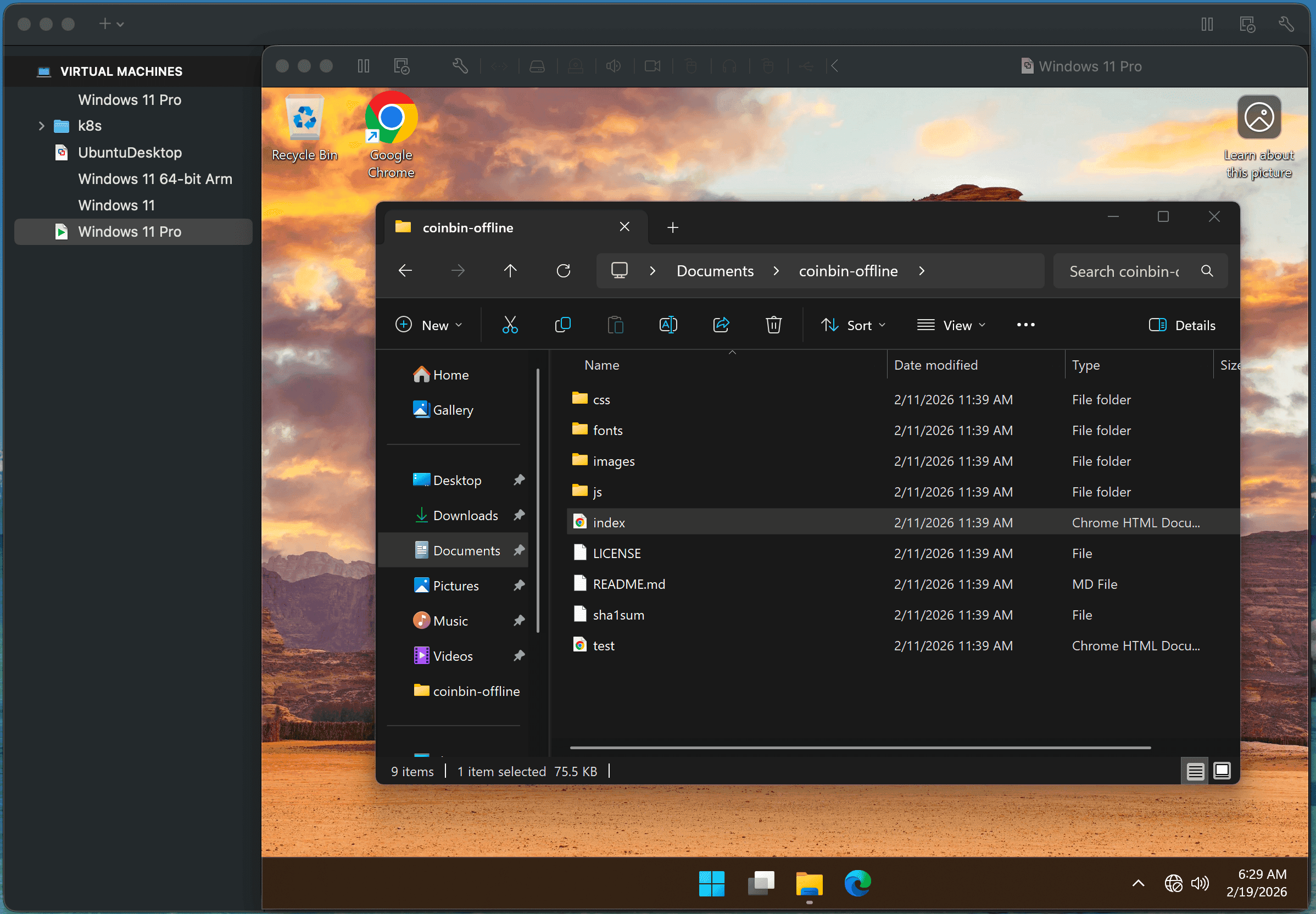
- From the menu, select
New SegWit Address, then generate your BTC address.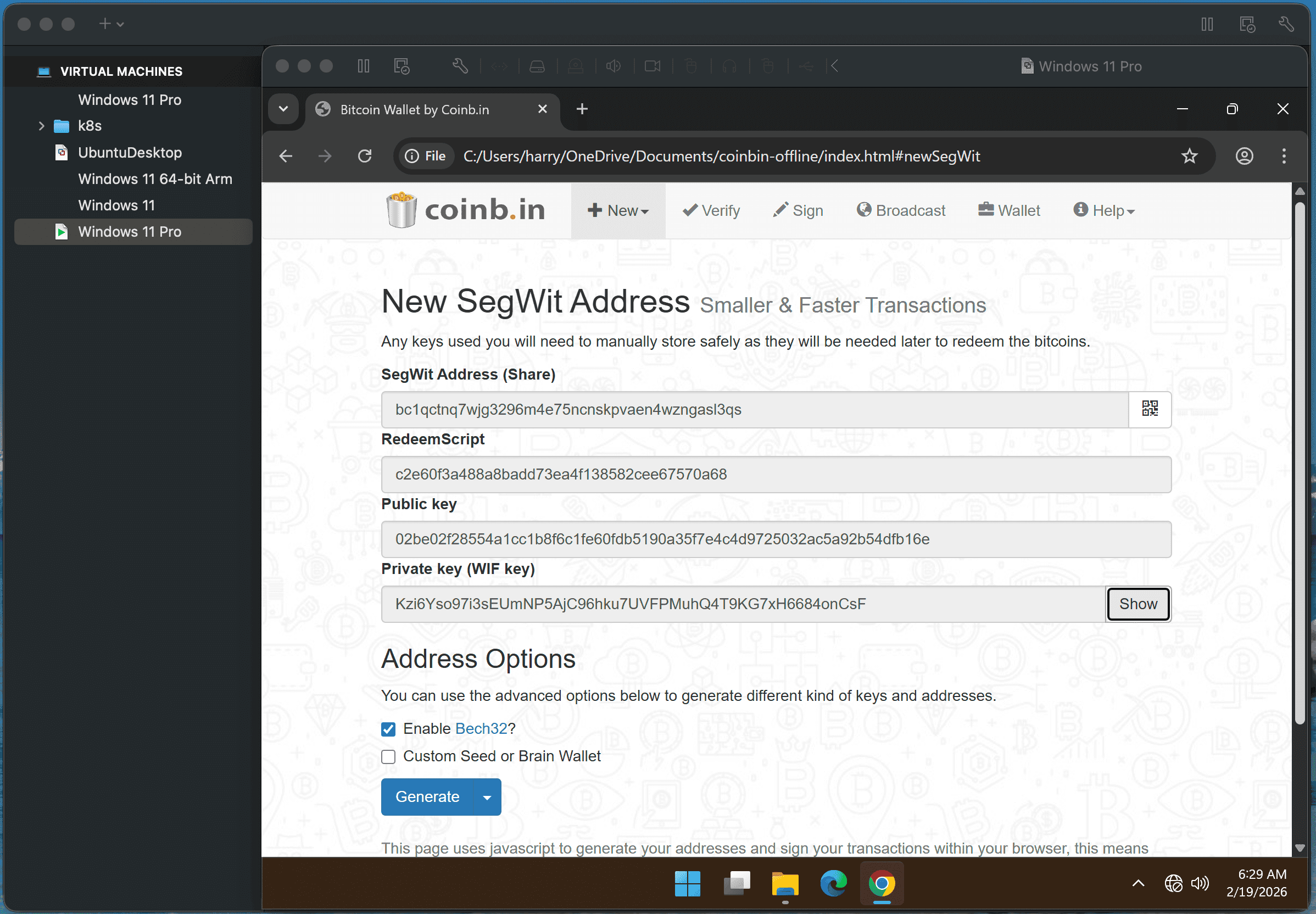
- Create three files:
btc1.txt,btc2.txt, andbtc3.txt. - Split the private key into three segments, and store two different segments in each file (so no single file contains the full key).
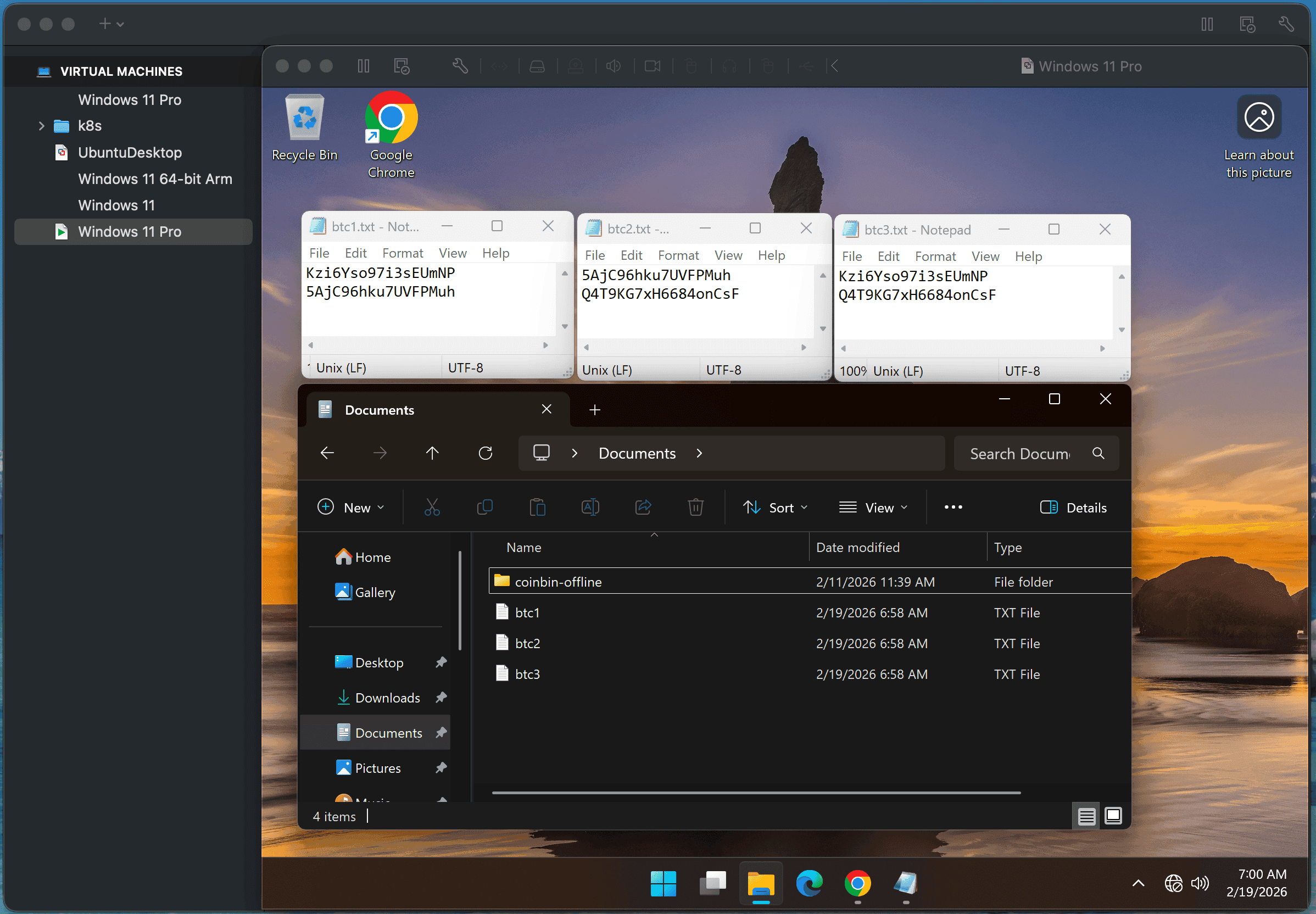
- Create three separate password-protected ZIP files (one per text file).
- Copy the ZIP files to your main PC, then upload only one ZIP to each cloud provider (never store more than one part with the same provider).
- To reconstruct your private key, you only need any two of the three files.
Conclusion
You've now created an offline BTC wallet and stored it more securely using separate cloud backups. Even if someone gains access to one of your cloud accounts, they still won't have enough information to reconstruct your private key. And even if they manage to access two accounts, they would still need the ZIP password to open the files.
P.S. You can still receive BTC to your offline wallet as usual.
Related
If you found this useful, you can buy me a coffee! Thanks for the support!